ui-extensions
Custom user interfaces
Introduced in v5.2.0
UI Extensions are custom web components that can extend the functionality/content of the CHT web application. This is an advanced feature and requires an app developer with some software development experience.
An example of a use for this feature is a custom landing page for users containing content specific to a deployment.
Types
Currently, there are two supported types of UI Extensions.
Header tab extensions
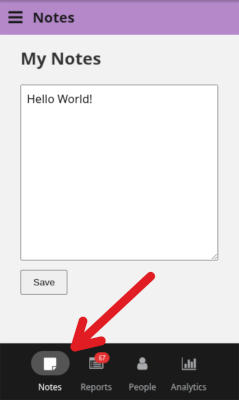
Extensions with the header_tab type are included in the webapp interface as a new top-level tab (along with “People”, “Tasks”, etc).
Use the weight property to control the placement of the UI Extensions in relation to the other visible header tabs. Tabs with a lower weight will be listed first and the first tab will be the default landing page when the app first opens.
Use the accent_color property to control the color of the tool-bar at the top of the interface.
Sidebar tab extensions
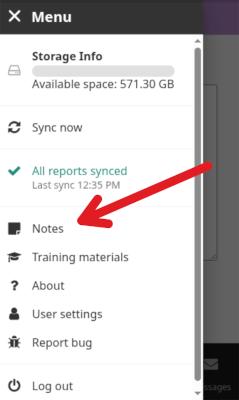
Extensions with the sidebar_tab type are included in the webapp interface as new tabs available from the sidebar menu (along with “Training Materials”, “About”, etc).
Use the accent_color property to control the color of the tool-bar at the top of the interface.
Building
The configuration for a UI Extension consists of a JavaScript file which exports a class extending HTMLElement and a properties.json file containing the configuration for the extension. These files should be added into the /ui-extensions directory in the project’s config directory.
- config
  - ui-extensions
    - my-extension.js
    - my-extension.properties.json
UI Extension Properties
The .properties.json file contains the configuration for each UI Extension.
| Property | Required | Description |
|---|---|---|
extension_type | Yes | The type of the extension (header_tab, sidebar_tab). |
title | Yes | The translation key for the title of the UI Extension. |
roles | An array of user role names that have access to the extension. Only users with one (or more) of the specified roles will be able to access the extension. If no roles are set, the extension will be available to all users. | |
icon | The FontAwesome class (beginning with fa-) to use as the extension icon. Must not be combined with resource_icon. | |
resource_icon | The resources key for the image to use as the extension icon. Must not be combined with icon. | |
accent_color | A CSS color value to use as the accent color for the extension. | |
weight | The numerical “weight” used to determine the extension ordering. Lower values come first. | |
config | Custom object containing any properties that should be passed to the constructed web component via this.inputs.config. |
Web component class
The extension JavaScript file must export a class that extends HTMLElement. This class represents the custom web component that will be available to the user in the webapp. The functionality that can be included in this web component is essentially limitless. Additionally, a number of resources are provided to the web component allowing for better integration with the CHT data model.
Constructor
The constructor of the class is called when the element is created, but before it is inserted on the DOM. It can be used to do any initialization that does not require access to the DOM or other external context. This is a good place to attach the shadow DOM to properly insulate the web component from the rest of the web app.
constructor() {
  super();
  this.attachShadow({ mode: 'open' });
}
connectedCallback()
The connectedCallback() method is called when the element is added to the DOM. This is a good place to finalize the component initialization (set up event listeners, fetch data, render content, etc).
This basic example demonstrates how HTML and CSS for the component can be set:
connectedCallback() {
  this.shadowRoot.innerHTML = `
      <style>
        h1 {
          color: blue;
        }
      </style>
      <h1>Hello World</h1>
    `;
}
Input data
Input data is available to the component logic in the this.inputs root level property.
| Property | Description |
|---|---|
userContactSummary | The contact-summary context for the contact associated with the logged in user. |
config | Optional. This object will contain the data loaded from config property of the UI Extension’s properties.json file (if it exists). |
CHT API
Provides CHT Core Framework’s functions to contact summary, targets, tasks, etc. The API is available in the cht reserved variable under the v1 version.
| Function | Arguments | Description |
|---|---|---|
| hasPermissions(permissions, userRoles) | permissions: String or array of permission name(s).userRoles: (Optional) Array of user roles. Default to the current logged in user. | Returns true if the user has the permission(s), otherwise returns false. |
| hasAnyPermission(permissionsGroups, userRoles) | permissionsGroups: Array of groups of permission name(s).userRoles: (Optional) Array of user roles. Default to the current logged in user. | Returns true if the user has all the permissions of any of the provided groups, otherwise returns false. |
| getExtensionLib(name) | name: String of script name | Returns an executable function identified by the given name configured as extension-libs. |
| analytics.getTargetDocs() | Returns three target documents of the contact, calculated for the last three reporting intervals, including the current one. When viewing one of the current logged in user’s associated facilities, returns the target documents for the contact associated with the current logged in user. Returns an empty array if no target documents are found (for example when viewing a contact that does not upload targets). Introduced in v4.11.0 | |
| translate(key, interpolateParams) | key: The translation key.interpolateParams: (Optional) Object containing values to be used in the translated string. | Returns the value in the current user’s language from the app translations for the given key. |
| getResource(name) | name: The name key of the resource to get | Returns the data for a configured resource. The returned object contains a content_type property defining the type of resource (e.g. image/png). The data property contains the Base64 representation of the resource. |
CHT API’s code samples
const canEdit = cht.v1.hasPermissions('can_edit');
const canManagePlaces = cht.v1.hasPermissions(['can_create_places', 'can_update_places']);
const hasAnyGroup = cht.v1.hasAnyPermission([
    ['can_view_messages', 'can_view_message_action'],
    ['can_view_reports', 'can_verify_reports']
]);
const averageFn = cht.v1.getExtensionLib('average.js');
const targetDocs = cht.v1.analytics.getTargetDocs();
CHT Data model
The cht API can also be used to interact directly with the CHT data model to read/create/update data for contacts, reports, etc. See the cht-datasource docs for more details.
const contactId = this.inputs.userContactSummary.contact_id;
const userContact = await this.cht.v1.person.getByUuid(contactId);
Uploading/deleting UI Extensions
Use cht-conf to upload all configured UI Extensions:
cht --url=${COUCH_URL} upload-ui-extensionsIndividual UI extensions can be uploaded by including their name when running the command. If you have a UI extension defined in hello.js/hello.properties.json, running this command will only upload that extension:
cht --url=${COUCH_URL} upload-ui-extensions -- hellocht-conf can also be used to delete all UI Extensions from an instance:
cht --url=${COUCH_URL} delete-ui-extensionsAdditionally, individual UI Extensions can be deleted by including their name when running the command:
cht --url=${COUCH_URL} delete-ui-extensions -- helloDid this documentation help you ?