Build > Forms > contact
Contact Forms: Used to create and edit people and places
Configure a geolocation widget in contact forms to capture GPS coordinates when a contact is created or edited
Contact forms can capture the device’s GPS location at the time a contact is created or edited. The geolocation widget handles the full capture experience automatically: it starts acquiring a position the instant the form renders, then shows progress, success, and failure states. It stores the result on the contact document.
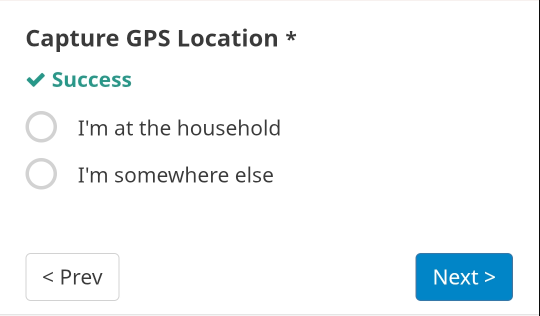
After a successful capture, the widget asks whether the CHW is at the household or somewhere else, and records the answer alongside the coordinates.
Added in CHT 5.3.
Caution
This widget is designed for contact forms only. Adding it to a report form is unsupported and may produce unexpected behavior.
The widget’s default copy is written for households (“Household location already saved”, “Change household location”… ). Nothing in the widget restricts it to household contacts specifically. It activates on any form field with an appearance column value of geolocation-capture, regardless of contact type. To use it on another contact type, override the geolocation.edit.*, geolocation.at.household, and geolocation.somewhere.else translation keys with wording appropriate to that contact type. Otherwise the household-specific default text shows through.
When the form is submitted, CHT writes the following fields to the contact document.
| Field | Value | Notes |
|---|---|---|
geolocation | GPS coordinates object | Written by CHT at save time. Set to the new coordinates only after a successful home capture; left unchanged in every other case (when keeping an existing location, when adding a non-home capture, or a failed capture). Cleared only when removing an existing location. |
geolocation_log | Array of capture events | Append-only; grows on subsequent edits |
Each entry in geolocation_log has this shape:
{
  "timestamp": 1234567890000,
  "recording": { "latitude": 1.23, "longitude": 4.56, "accuracy": 10 },
  "is_home": true
}
is_home is set to true for home captures and false for other-context captures. On GPS failure, recording is an error object ({ "code": 2, "message": "..." }) and is_home is not present. geolocation itself never holds an error. On failure, any existing geolocation field on the contact is left untouched.
Note
A failed GPS attempt is only logged to geolocation_log when the contact had no prior location: the create-flow “Save without location” path, or editing a contact with no existing location. Choosing Remove household location in edit mode never attempts a capture and never appends a log entry.
Add the following row to the survey sheet, within the existing contact group:
| type | name | label::en | appearance | required |
|---|---|---|---|---|
| string | geo_capture | Capture GPS location | geolocation-capture | yes |
The field name (geo_capture in this example) can be anything; only the appearance value (geolocation-capture) is the contract between the form and CHT. Set required to yes if you want to require the CHW to submit the geolocation data before continuing. The widget itself does not independently require this, so leaving it blank means the field can be left empty on submission.
For additional languages, add a label::<lang> column for each language your deployment supports (for example, label::fr).
Convert and upload the form with cht-conf as usual.
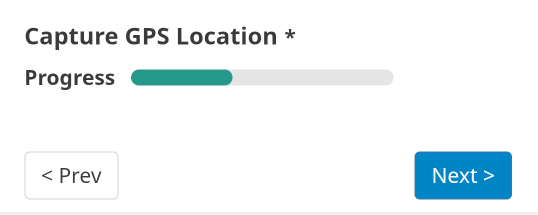
Once the form is configured, GPS acquisition starts automatically the moment the form renders. There’s no capture button and no question gating it.
While GPS is acquiring:
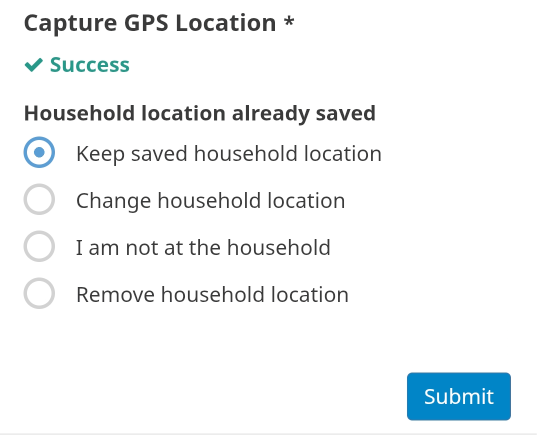
On success:
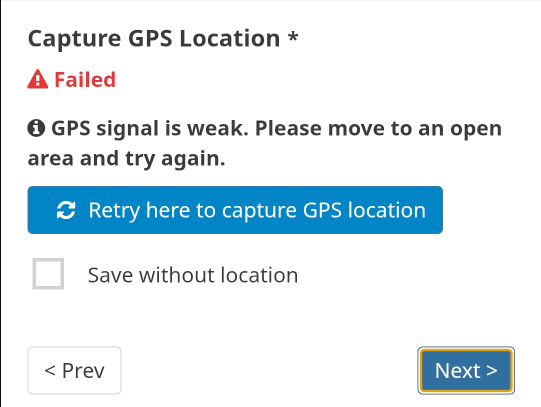
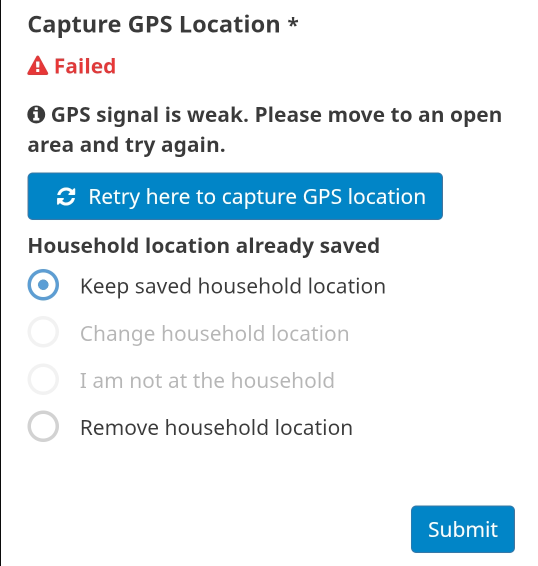
On failure (weak or unavailable GPS signal):
When location permission is denied:
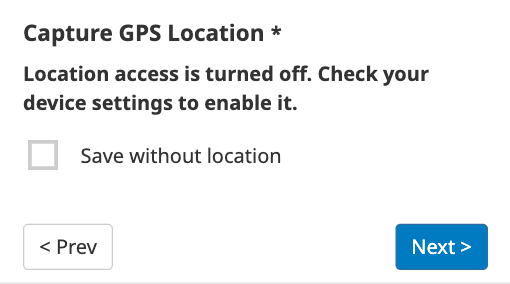
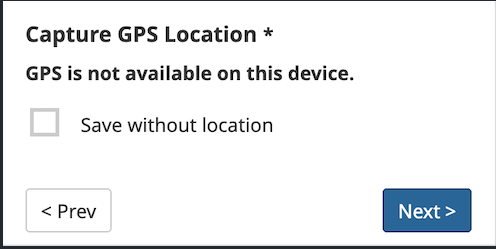
When GPS is unavailable on the device:
When a contact already has a valid location on record (geolocation set from an earlier successful capture), editing that contact activates a different widget state. No additional configuration is required.
As soon as the edit form opens, GPS starts acquiring silently in the background. There’s no progress bar to watch. The CHW finds out whether it succeeded by trying to select one of the capture options below.
Edit mode UI:
| Option | Effect |
|---|---|
| Keep saved household location (pre-selected) | geolocation and geolocation_log are left exactly as they are. |
| Change household location | Starts a home capture, the same as the create flow’s home context. |
| I am not at the household | Starts an “other” capture, logged to geolocation_log, but doesn’t overwrite geolocation. |
| Remove household location | Clears geolocation entirely. No GPS capture is attempted. |
Contacts with only failed captures:
Contacts with no location recorded:
Contact Forms: Used to create and edit people and places
Overview of contacts and users